
How to add your Stack Hosting email to Apple Mail
Use these steps to add your Stack Hosting mailbox to Apple Mail on a Mac.
1. Open Apple Mail accounts
- Open Apple Mail.
- Go to the Mail menu and choose Accounts… (or Settings → Accounts, depending on your macOS version).
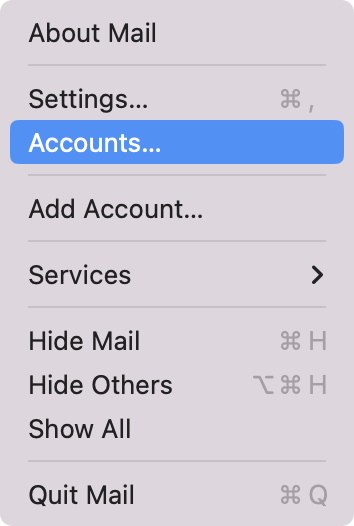
2. Add a mail account
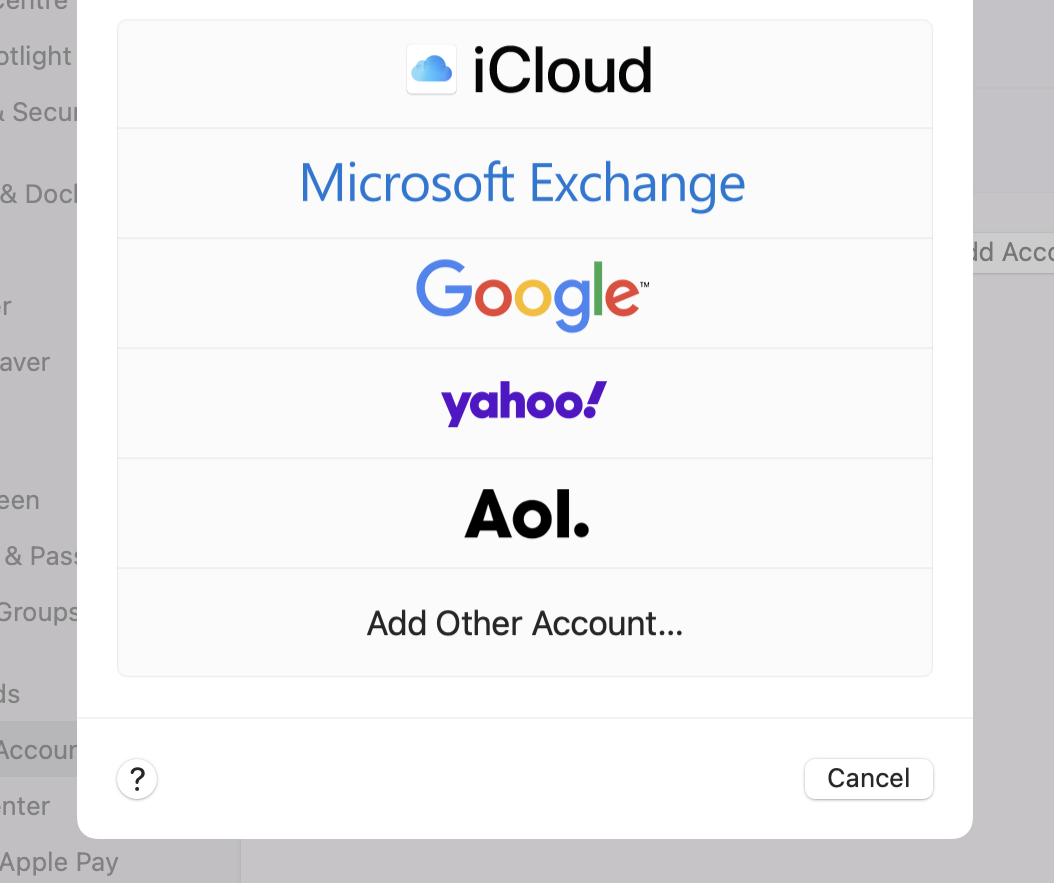
- Click Add Account….
- Choose Other Mail Account… / Add Other Account….
- Select Mail Account if asked.

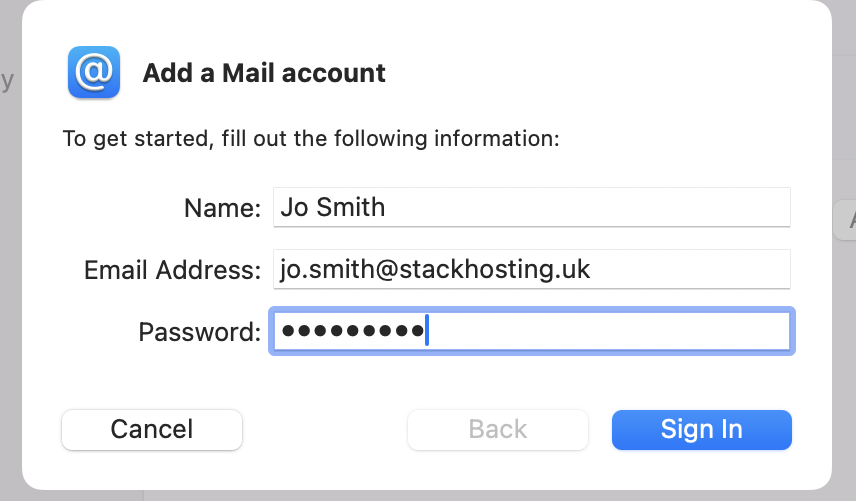
3. Enter your details
- Name: the name people should see on emails you send.
- Email Address: your full email address.
- Password: your mailbox password.
- Continue, then set Username to your full email address and Account Type to IMAP.
4. Enter server settings
Mail server settings
Use these details when the app asks for server settings. Username is always your full email address.

5. Finish setup
- Turn off Notes unless you specifically need them.
- Click Done.

Done. Your Stack Hosting email should now be set up in Apple Mail.
